


Features
Everything for your menu.
In one place.
Create, update and share with ease.
Explore the features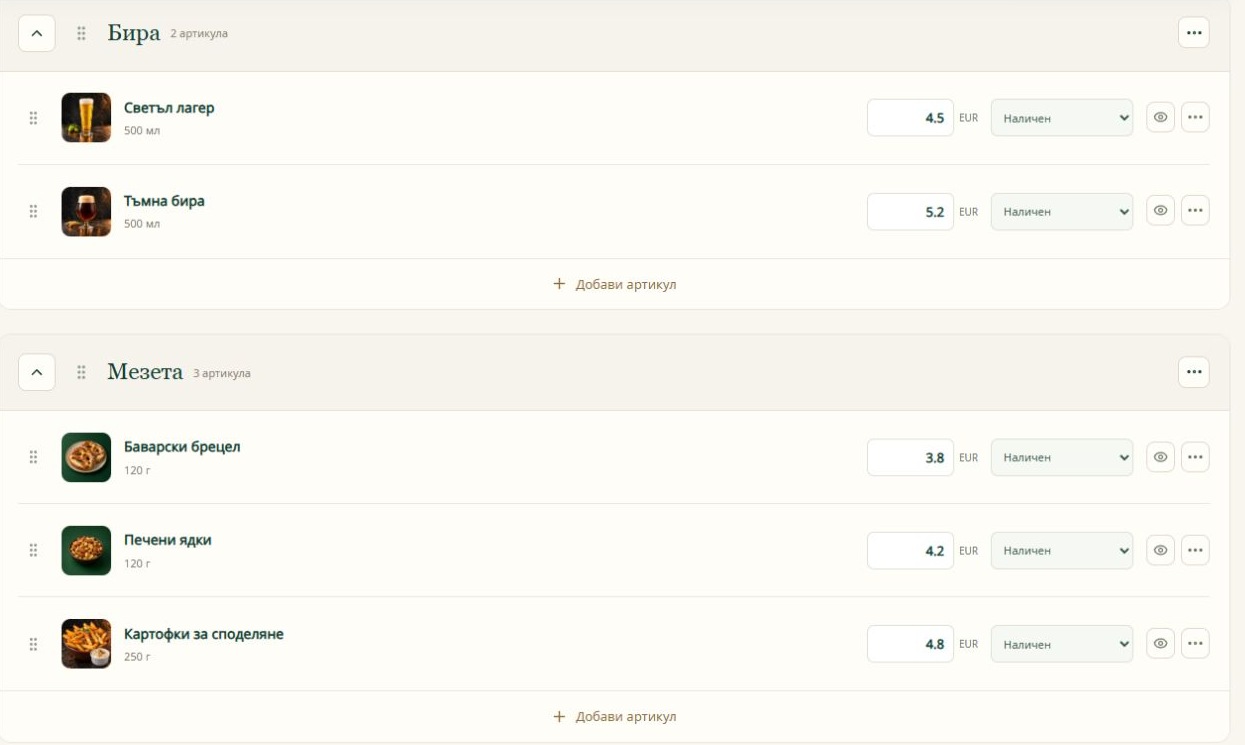
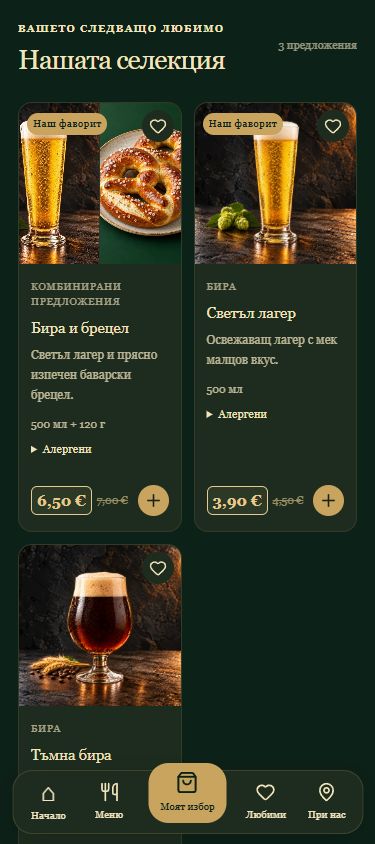
Screenshots show the Bulgarian version of the platform.
Create your menu.
Start with what you already have.
Import a photo, PDF, spreadsheet or text. Review the recognised products, correct the details and add them to your draft.
- Import with review before addingPro plan
- Personal library for reusing productsPro plan
- 1 menu with up to 30 itemsPro plan
- Up to 3 menus with 1,000 items eachPro plan
Quick guideHow do I get started?
Open Products → Menu import. Choose your source and check names, prices and categories before adding. Photograph one page at a time, straight on and in good light.
Go to helpMake it yours.
Your venue’s character, in every detail.
Choose a design, add your logo and photos. Arrange sections and edit the wording to make the menu feel like your venue.
- 3 designs and up to 10 products with photosPro plan
- All designs, gallery and your own photosPro plan
- 3 trial AI photos — once per accountPro plan
- 10 AI photos per month and no platform creditPro plan
Quick guideWhere do I edit sections and text?
Choose a design under Appearance, then manage content and order in Sections and text. Check View as guest, then publish your changes.
Go to helpOffer more.
Great combinations. The right moment.
Combine products into one offer. Their photos form a collage, or you can add your own combined photo. Schedule a promotional price with a start and end.
- Combos with automatic photosPro plan
- Scheduled promotions and a weekly lunch menuPro plan
- Allergens and availability follow the included productsPro plan
Quick guideHow does a promotion become active?
In Library and offers, open Promotions. Choose a product, a lower price and a period. Publish the changes. The price follows your venue’s time zone and returns to the regular price at the end.
Go to helpWelcome guests in their language.
One menu. Five languages.
Bulgarian, English, German, French and Spanish. Use automatic translation as a starting point and review the wording before guests see it.
- One primary languagePro plan
- 5 languages and 50,000 translation characters per monthPro plan
Quick guideHow do I publish a translation?
Open Languages, enable the languages you want and translate automatically or enter your own text. Review the result and publish. The monthly allowance is shared across all menus and languages in your account.
Go to helpShare everywhere.
One identity — from the table to social media.
Download your permanent QR code on its own or on a card with your own wording. Use Social Pack to create a cover, profile image, posts and stories in your menu’s style.
- QR code and cards with editable textPro plan
- Social Pack and additional print materialsPro plan
Quick guideHow do I share a finished design?
In Management → Social Pack, choose a format and review the design. Use sharing when supported by your device. The fallback is downloading the file and copying the caption. You confirm publication in Facebook or Instagram.
Go to helpManage with confidence.
Everyday updates, without extra steps.
Update prices and availability from your phone. Schedule category hours and check your menu before publishing. See which products attract attention.
- Edit prices, allergens and availabilityPro plan
- Schedules, checks and engagement statisticsPro plan
- Checks for missing photos, descriptions and translationsPro plan
Quick guideWhat do the statistics show?
Statistics shows opens, product views, additions to My picks and Favourites over 7, 30 or 90 days. These measure interest, not orders or sales.
Go to helpWelcome guests with reservations.
From a chosen time to your shared calendar.
Guests choose a date, time and party size directly from your menu, without registering. Approve requests yourself or confirm them automatically when places are available. Enable the system only when you need it.
- Online reservations and a shared calendarPro plan
- Shared capacity across all your restaurant’s menusPro plan
- Telephone reservations and a private link for status and cancellationPro plan
Quick guideHow do I start accepting reservations?
Under “Management” → “Reservations” → “Settings”, set your capacity, hours and confirmation method. Enable and save. The “Book a table” button appears in your public menus. The system is disabled by default. When Pro expires, new requests stop, while existing reservations remain available to manage.
Go to helpReady for your own menu?
Start free. More possibilities when you need them.