


How to update your lunch menu online
Prepare a weekly lunch menu in Menumexa: days, hours, separate lunch prices, publishing and daily availability.
Lunch menus change frequently, but guests should not have to find a new photo or link every day. In Menumexa you select dishes from your main menu and assign them to weekdays. Once published, the lunch section appears on schedule. Your main menu remains available.
Before you start
First add visible dishes to the main menu, with correct prices, portions and allergens. Prepare your weekly plan and lunch hours. This feature is part of Pro, including trial access. Hidden or deleted products cannot appear as visible lunch offers.
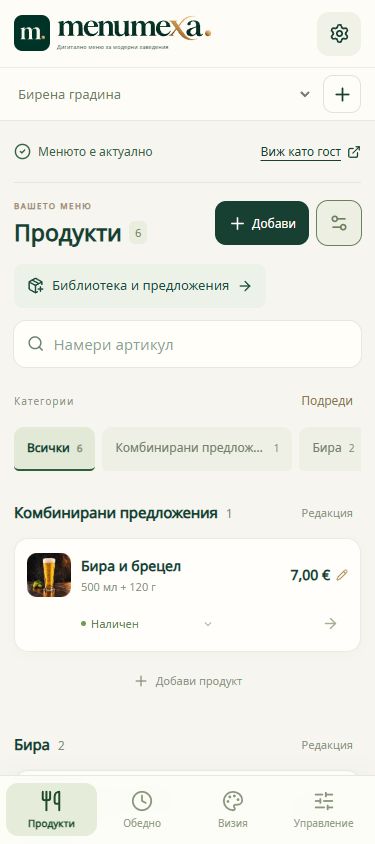
Open Lunch menu
Select your menu in the dashboard and open Lunch menu. Reuse existing products instead of typing the entire menu again. If a dish is missing, check that both the item and its category are visible in the main menu.
Set hours and time zone
Enable scheduled display and set a start and end, such as 12:00–15:00. The end must be after the start. Check the venue time zone, such as Europe/Sofia for Bulgaria. The schedule repeats weekly; selecting a weekday does not create a one-off event.
Choose dishes for each weekday
Open each day and select its dishes. You can copy from another day, but doing so replaces the current selection for the destination day. Review the result after copying. Leave a day empty if it has no lunch offers.
Add lunch prices and publish
You can enter a separate lunch price for a selected dish. A blank field uses the main price and variants; an explicit lunch price is a single price without size variants in the lunch section. Review the whole week and publish. Saving a draft alone does not update what guests see.
Keep availability current
When a dish sells out, mark it sold out until tomorrow or until restored. This updates the published menu immediately. Price, ingredient and schedule changes stay in the draft until publication. Review the plan before the next week because the schedule repeats.
Before launch checklist
- Check every weekday, including weekends and empty selections.
- Verify the venue hours and time zone.
- Compare main and lunch prices and review any variants.
- Publish and open the public menu during the active lunch hours.
Frequently asked questions
Do I need a new QR code every day?
No. The lunch section uses the same public menu and permanent QR code.
Why is my lunch menu missing?
Check that scheduling is enabled and published, today has visible selected dishes and the current time is within the venue time zone’s interval. Also check that your account has active access.
Does a lunch price change the product’s main price?
No. The separate price applies to the selected lunch offer. The main menu keeps its own price. Leave the lunch price blank to use the main price.
Open screenshots at full size. The demo shows the menu design and browsing experience; it does not accept real orders or reservations.