


How to create a QR menu for your restaurant
A practical QR menu guide: categories, prices, photos, translations, publishing and testing your QR code with Menumexa.
A useful QR menu helps guests find a dish, understand its price and read the ingredients. With Menumexa you create a page designed for phones, rather than just a link to a PDF. Prepare changes in a draft and decide when they go live. This guide covers your first menu and the updates that follow.
Before you start
Gather current product names, prices, portions, ingredients and allergens. Choose photos that represent what you serve. You can import a printed menu, photo, PDF or spreadsheet, but compare the recognised data with the original before using it.
Create an account and choose a design
Register and verify your email. Enter your venue name and choose a design when creating a menu. Start with sample items or an empty menu. Sample dishes are a starting point: replace them with your own before publishing.
Organise categories and products
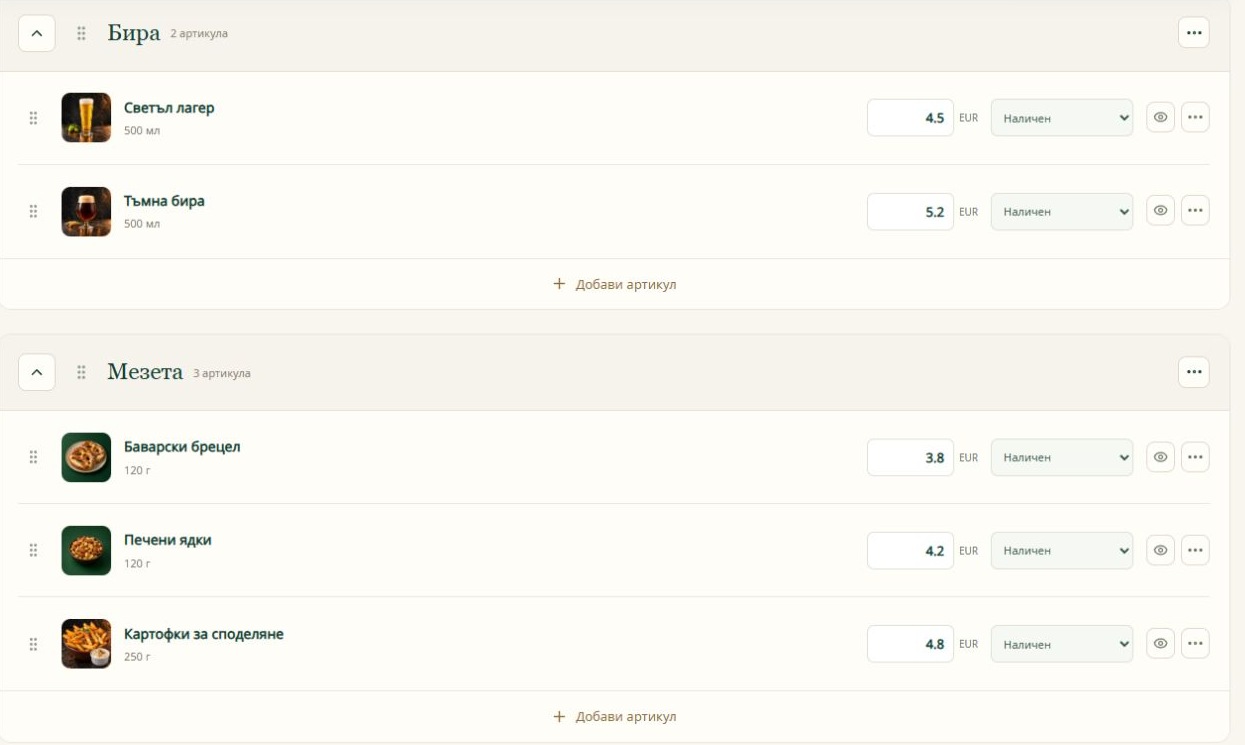
Under Categories & items, separate salads, main courses, desserts and drinks, for example. Give each product a clear name, price and portion. Add ingredients and verified allergens. Use variants with individual prices for different sizes, rather than confusing duplicate products.
Choose photos with a consistent style
Upload your photos or use the gallery. A consistent background keeps several rows of products easy to scan. Check the result on a phone. Gallery and AI images are illustrations: make sure they do not misrepresent the dish you actually serve.
Review languages and layout
Add the translations you need under Menu languages, within your plan limits. Check names, ingredients and allergens even when using automatic translation. Preview the draft on a phone and computer. Pay attention to long headings, product sizes and category visibility.
Publish and scan the QR code
Publish the reviewed menu, then open QR code & link and use the public address to share it. Scan with another phone before printing multiple copies. Test the actual print size, lighting and material. Publish again after future edits; the address stays the same.
Before launch checklist
- Check prices, portions, variants and allergens.
- Remove or replace unwanted sample items.
- Open the public menu without signing in and switch its language.
- Scan a printed sample QR code before printing the full batch.
Frequently asked questions
Do I need a new QR code after each change?
No. The address and QR code for the same menu stay unchanged. Edit the draft and publish the updated version.
When does the free month begin?
Your account gets 30 days from the first successful publication, without a card or automatic charges. When it expires, menus are hidden until payment. Products and the QR code are kept.
Can guests order and pay through the menu?
My selection collects products that guests can show to a waiter. It does not send an order or accept payment for food.
Open screenshots at full size. The demo shows the menu design and browsing experience; it does not accept real orders or reservations.