


How online restaurant reservations work
Set up Menumexa reservations: capacity, hours, confirmation, a shared calendar and guest request tracking.
An online reservation starts with a date, time and number of guests. In Menumexa it begins in your public menu and is managed in a shared venue calendar. The owner decides whether to enable it. Reservations are included in Pro, and guests do not need an account.
Before you start
Decide how many seats to offer online, your usual visit duration and opening hours. The system uses total capacity, not a floor plan of individual tables. Review groups that require a particular seating arrangement against your actual dining room layout.
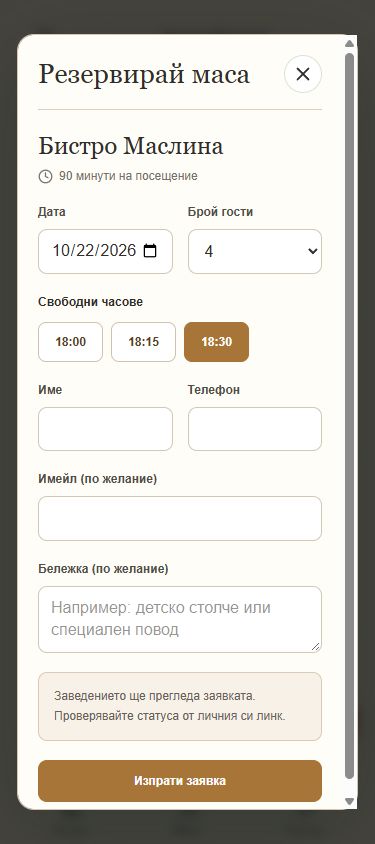
Enable reservations in settings
In the dashboard, open Management → Reservations → Settings. New online requests are disabled by default. Enable them and choose a confirmation mode. Save the changes; the Reserve a table button appears in the public menu while access is active.
Set capacity and limits
Enter total seats, maximum party size, visit duration and minimum notice. Specify how many days ahead guests may book. Use realistic values: the system checks available seats throughout the whole visit, not just its starting time.
Set hours and closed dates
Check working days, hours and time zone. Add dates when you do not accept bookings. The last visit must finish before closing. If you close after midnight, review the interval you have assigned to that working day carefully.
Choose how to confirm
Automatic mode can confirm when capacity is available. Approval mode leaves requests awaiting a team decision. Guests enter a date, time, party size, name and phone number; email is optional. The private link shows the current status: a request must not be mistaken for a confirmed booking.
Maintain one shared calendar
Add telephone bookings too so that capacity reflects real occupancy. Different menus for one venue share the same seats. Update statuses for arrivals, completed visits, rejections and no-shows. Pausing new requests keeps existing reservations in the calendar.
Before launch checklist
- Check capacity, maximum party size and visit duration.
- Save the mode, opening hours, time zone and closed dates.
- Open the public menu without signing in and check for the button.
- Agree who monitors pending requests and records telephone bookings.
Frequently asked questions
Why can’t I see Reserve a table?
Check that reservations are enabled and saved, your menu is public and trial or paid Pro access is active. The design demo shows the menu appearance but does not accept real reservations.
Does the guest need an email or account?
No account is needed and email is optional. Guests should keep their private status link. If they provide an email, they can also receive automated reservation messages.
What happens if reservations are disabled or access expires?
New online requests stop. Existing reservations remain available to manage. Guests can check the status and cancel through their private link when cancellation is permitted.
Open screenshots at full size. The demo shows the menu design and browsing experience; it does not accept real orders or reservations.